

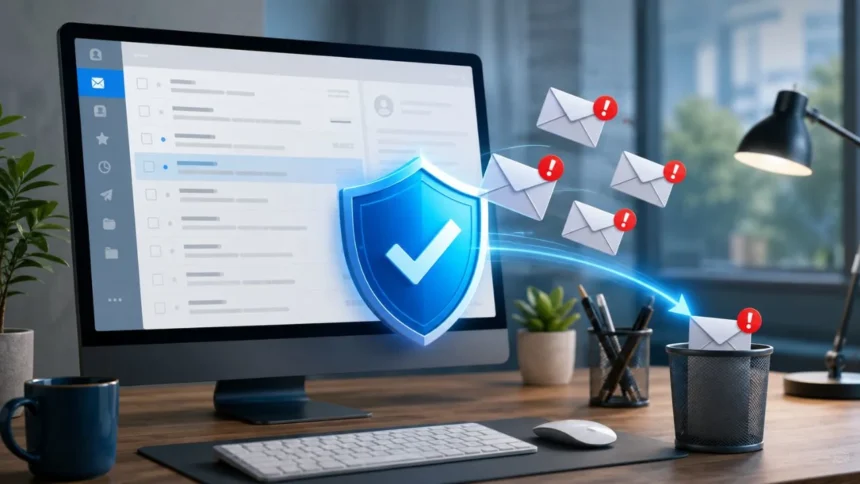
Spam emails can turn a useful inbox into a distracting and potentially dangerous place. Promotional messages, fake invoices, fraudulent delivery notices, and phishing attempts can arrive daily, making important emails harder to find. Learning how to stop spam emails helps you regain control of your inbox while reducing your exposure to scams, malicious attachments, and suspicious websites.
Unfortunately, there is no single button that permanently stops every unwanted email. Spammers frequently change addresses, domains, subject lines, and message formats to bypass email spam filters. However, consistently reporting junk mail, blocking persistent senders, creating inbox rules, and protecting your email address can significantly reduce the number of unwanted messages you receive.
It is also important to understand that not every unwanted message is the same. A newsletter from a legitimate company requires a different response from a fake bank warning designed to steal your password. Knowing when to unsubscribe, when to block a sender, and when to report phishing protects both your inbox and your personal information.
This guide explains practical ways to reduce spam in Gmail, Outlook, Apple Mail, and other email services. You will also learn how to identify dangerous messages, secure your email account, prevent future spam, and respond safely if you accidentally interact with a suspicious email.
Understand the Difference Between Spam, Marketing Emails, and Phishing
Marketing emails usually come from companies, websites, or organizations you previously interacted with. You may have subscribed to a newsletter, created an account, entered a competition, or agreed to receive promotional updates. These messages can feel unwanted, but they normally include genuine company information and a working unsubscribe option.
Spam emails are unsolicited messages sent to large numbers of recipients. They may advertise questionable products, promote fake opportunities, or direct users to low-quality websites. Some spam is merely annoying, while other messages are designed to collect active email addresses or persuade recipients to share sensitive information.
Phishing emails are more dangerous because they impersonate trusted organizations or individuals. A phishing message may claim that your bank account has been locked, a parcel cannot be delivered, or an urgent payment is required. Its purpose is usually to steal login credentials, financial information, personal details, or access to your device.
Before taking action, examine the sender, subject line, wording, links, and requested action. Legitimate promotional mail can usually be unsubscribed from safely, while suspicious messages should be reported as spam or phishing without clicking anything inside them. This distinction prevents you from accidentally confirming your address to a scammer. Unwanted Messages as Spam Instead of Only Deleting Them
Deleting a spam email removes the message from your inbox, but it does not teach your email provider that similar messages are unwanted. When you select “Report spam,” “Mark as junk,” or “Report phishing,” you provide useful information to the provider’s filtering system. This may improve how related emails are handled in the future.
Spam filters examine signals such as sender reputation, domain history, message content, authentication records, and user reports. Reporting suspicious messages gives the system another signal that the email should not remain in the main inbox. Over time, consistent reporting can make your personal filtering more accurate.
Avoid opening suspicious emails unnecessarily, especially when the preview already shows obvious warning signs. Select the message from the inbox list and use the spam-reporting option when possible. Never download an attachment or follow a link simply to determine whether the message is genuine.
Be careful not to report legitimate newsletters as phishing just because you no longer want them. Use the unsubscribe feature for trusted mailing lists and reserve spam or phishing reports for deceptive, unsolicited, or harmful messages. Gmail, Outlook, and iCloud Mail all provide tools for reporting junk messages. scribe Safely From Legitimate Mailing Lists
Unsubscribing is one of the best ways to stop promotional emails from a company you recognize. Trusted senders commonly include an unsubscribe link at the bottom of the message or a built-in unsubscribe button near the sender’s name. Once processed, the company should remove your address from the relevant mailing list.
Before clicking, confirm that the email genuinely comes from a business or organization you know. Check the full sender address, branding, grammar, website domain, and history of previous messages. A recognizable logo alone is not enough because scammers can easily copy images and company names.
Use the unsubscribe controls provided by your email service whenever they are available. Gmail, for example, may display an unsubscribe option beside the sender information for supported promotional messages. The process can take several days, so you may continue receiving some emails while the request is being completed. se an unsubscribe link inside an obviously fraudulent or suspicious email. A fake link may lead to a phishing page, download malware, or confirm that your email address is active. When you do not trust the sender, report the message as spam and delete it without interacting with its content. Persistent Email Senders and Suspicious Domains
Blocking is useful when the same sender repeatedly contacts you despite being unwanted. After an address is blocked, future messages from that sender are generally moved to the spam or junk folder. This keeps them away from your main inbox, although it does not prevent the sender from technically sending messages.
In Gmail, open a message, select the menu beside the reply option, and choose “Block” followed by the sender’s name. Messages received later from that address will be directed to the Spam folder. Blocking the sender does not automatically remove your address from a legitimate mailing list. allows users to block individual email addresses as well as entire domains. Domain blocking can be useful when multiple messages come from different addresses connected to the same suspicious website. However, avoid blocking a large shared domain that might also be used by people or companies you trust. has limitations because professional spammers often rotate their sending addresses. If every message comes from a different account, reporting spam and creating broader filters may be more effective. Use blocking for persistent senders, but combine it with stronger inbox-management and email-security practices.
Create Email Filters and Inbox Rules
Filters automatically organize incoming messages according to conditions you choose. You can create rules based on the sender address, subject line, keywords, recipient address, or other message details. Matching emails can then be deleted, archived, labelled, forwarded, or moved to a separate folder.
Start with narrow conditions to avoid hiding legitimate emails. For example, filter messages from a particular unwanted address instead of deleting every email containing the word “offer.” Broad rules may accidentally remove receipts, account notifications, client messages, or genuine discounts you expected to receive.
Filters are particularly helpful when unwanted messages follow a recognizable pattern. You might notice that they contain the same phrase, use a repeated domain, or arrive through an old email alias. A carefully designed mailbox rule can process these messages before they interrupt your day.
Review your filters occasionally because your communication needs may change. Delete outdated rules, correct conditions that catch legitimate mail, and check your spam folder for false positives. Email automation should make your inbox easier to manage without causing important messages to disappear.
Protect Your Email Address From Spam Harvesting
Your email address may attract spam after being published publicly, submitted to an unreliable website, exposed in a data breach, or shared with marketing partners. Automated tools can also scan websites, online directories, forums, and comment sections to collect addresses for unsolicited campaigns.
Avoid displaying your primary personal email address on public pages whenever possible. Use a contact form for website enquiries or create a separate business address for public communication. Keeping personal, professional, shopping, and newsletter emails separate limits the effect when one address begins receiving heavy spam.
Consider using email aliases or disposable addresses for free downloads, temporary registrations, online competitions, and unfamiliar services. An alias forwards mail to your main inbox without revealing the primary address. If the alias becomes overloaded with junk mail, you can disable it without replacing your main account.
Before submitting your address, review whether the website appears trustworthy and whether marketing consent is optional. Untick promotional boxes you do not need and avoid services that demand unnecessary information. Small privacy decisions made during registration can prevent months of unwanted email later.
Strengthen Your Email Account Security
Spam does not always mean that someone has accessed your account. However, a sudden increase in unusual messages can sometimes accompany a data leak, credential theft, or an attempt to hide legitimate security notifications. Good account protection reduces the damage if a scammer obtains your email address.
Use a strong, unique password that is not shared with any other website. A password manager can generate and securely store complex passwords, making password reuse unnecessary. When the same password is used across several accounts, one compromised service can put your email and connected accounts at risk.
Enable two-factor authentication or multi-factor authentication for your email account. This requires an additional verification step when someone attempts to sign in. An authenticator app, security key, or passkey generally provides stronger protection than relying only on a password.
Review recent login activity, connected applications, forwarding settings, recovery information, and mailbox rules. Attackers who gain access may create hidden forwarding rules or filters to intercept messages. Remove unfamiliar devices and applications, update your password, and sign out of other sessions when anything looks suspicious.
How to Stop Spam Emails in Gmail
When an unwanted message reaches your Gmail inbox, select it and use the “Report spam” button. Gmail moves the message to Spam and uses the report as part of its filtering process. For deceptive messages that imitate trusted organizations, choose the phishing-reporting option when it is available.
To block a particular sender, open the email, select the three-dot menu near the reply controls, and choose “Block.” Future messages from that address will be sent to Spam. Remember that blocking is different from unsubscribing, so legitimate newsletters may require an additional unsubscribe request. ted promotional messages, use Gmail’s built-in unsubscribe control beside the sender’s name or the genuine link inside the email. Review the sender first, especially when the message contains unusual urgency or unfamiliar links. Do not unsubscribe through content that appears fraudulent or impersonates another company. also create filters through Gmail’s advanced search options. Enter the sender, domain, subject phrase, or matching keyword, select “Create filter,” and choose an action. Use automatic deletion cautiously, because moving uncertain messages to a label or archive gives you an opportunity to review the results.
How to Stop Spam Emails in Outlook
Outlook users can select an unwanted message and report it as junk or phishing. The available wording may vary between Outlook on the web, desktop software, and mobile applications. Reporting helps separate ordinary unwanted messages from emails that appear designed to steal information.
To block an address in the newer Outlook experience, open Settings and navigate to Mail followed by Junk email. Add the unwanted address to the blocked senders list. You can also block a domain when several related addresses are repeatedly sending suspicious messages. rules provide more control when basic blocking is not enough. A rule can move or delete messages that match specific conditions, such as a repeated subject phrase or sender domain. Start with precise criteria and test the rule before allowing it to delete emails automatically.
Check the Junk Email folder regularly, particularly after changing your settings. A legitimate customer, colleague, or service notification may occasionally be filtered incorrectly. Mark genuine emails as not junk and add essential contacts to your safe senders list where appropriate.
How to Stop Spam Emails in Apple Mail and iCloud Mail
Apple Mail users can mark unwanted messages as junk to help separate them from legitimate correspondence. On different Apple devices, the exact controls may appear in a toolbar, message menu, or move-to-folder option. Messages identified as junk are moved away from the main inbox.
On a Mac, you can block a sender by opening the message, selecting the arrow beside the sender’s name, and choosing “Block Sender.” Apple Mail marks future messages from that sender as blocked. Blocked contacts can also be reviewed through the relevant privacy and security settings. ud Mail, report unwanted messages as junk rather than repeatedly deleting them. If a legitimate email is incorrectly filtered, move it from the Junk folder back to the inbox or mark it as not junk. This helps the system treat future messages from that sender more accurately. il filters and mailbox rules can help organize recurring messages, especially on a Mac. Use them to move newsletters, purchase receipts, or low-priority updates into dedicated folders. Avoid creating overly broad deletion rules that might remove account security warnings or personal messages.
Recognize the Warning Signs of a Phishing Email
A phishing email often creates urgency by claiming that immediate action is required. It may warn that your account will be closed, a payment has failed, or suspicious activity has been detected. The pressure is designed to make you act before carefully checking the message.
Inspect the full sender address instead of trusting the displayed name. A message may say it comes from a bank while using an unrelated or slightly misspelled domain. Scammers also replace letters with similar-looking characters to create addresses that appear genuine at first glance.
Be cautious of unexpected attachments, shortened links, login buttons, payment requests, and demands for personal information. Hover over a link on a computer to preview its destination without clicking. On mobile devices, press carefully to preview when supported, but avoid opening anything that appears suspicious.
When a message may be genuine, contact the organization through its official application, saved phone number, or website entered manually into your browser. Do not use the contact details supplied in the suspicious email. This independent verification helps you avoid fake customer-service pages and fraudulent phone numbers.
What to Do After Clicking a Suspicious Email Link
Opening an email alone does not always mean your account has been compromised. The level of risk depends on what happened next, such as whether you visited a webpage, downloaded a file, installed software, entered a password, or submitted banking information. Respond according to the action you took.
If you entered your email password on a suspicious page, change it immediately from the official account settings. Choose a completely new password, enable multi-factor authentication, and sign out of unfamiliar sessions. Update other accounts as well when they used the same or a similar password.
If you downloaded or opened an unknown attachment, disconnect the device from sensitive accounts and run a trusted security scan. Remove suspicious browser extensions or applications and install available system updates. Consider professional technical support when the device behaves unusually or contains important business information.
When financial details were shared, contact the relevant bank or payment provider using an official number. Monitor transactions and follow the provider’s fraud-protection instructions. Report the phishing message through your email service so it can be investigated and filtered for other users.
Reduce Newsletter Overload Without Missing Important Emails
Newsletter overload is not always traditional spam. You may have voluntarily joined dozens of mailing lists that are no longer useful. Processing these subscriptions separately can reduce inbox clutter without incorrectly reporting legitimate companies for abuse or phishing.
Begin with senders you recognize and decide whether each subscription still provides value. Unsubscribe from outdated promotions, inactive communities, repeated sales messages, and services you no longer use. Keep essential account, billing, security, and purchase notifications enabled.
Create a dedicated folder or label for newsletters you still want to read. A filter can move them out of the primary inbox while preserving them for later. This prevents promotional emails from competing with client messages, work requests, family communication, and important account alerts.
You may also use a separate email address for newsletters, discounts, and shopping accounts. Keeping optional communication away from your primary inbox makes spam easier to control. It also reduces the amount of personal information connected to the address you use for sensitive accounts.
Build a Simple Routine for a Cleaner Inbox
Spend a few minutes each week reviewing recent unwanted emails. Report suspicious messages, unsubscribe from trusted lists you no longer need, and block persistent senders. Regular maintenance prevents minor inbox clutter from developing into thousands of unread messages.
Check the spam folder before it is emptied automatically. Look for legitimate messages that were filtered by mistake and mark them as not spam. This is especially important when you are expecting a password reset, job response, customer enquiry, purchase confirmation, or medical appointment notification.
Review your filters, blocked senders, aliases, and forwarding rules every few months. Remove outdated settings and investigate anything you do not remember creating. A simple security review can uncover misconfigured rules as well as unauthorized changes to your mailbox.
Most importantly, slow down before interacting with urgent or emotional emails. Spammers succeed when recipients click before thinking. Reading the sender address, checking the destination independently, and reporting suspicious content can protect your account more effectively than reacting quickly.
When Should You Create a New Email Address?
Creating a new address should usually be a final option rather than your first response. Most spam can be managed through reporting, blocking, unsubscribing, filters, aliases, and better privacy habits. Replacing an established address may also require updating many important accounts and contacts.
A new address may be reasonable when the existing inbox receives an overwhelming volume of malicious email every day. It can also help when the address has been publicly exposed for years, repeatedly appears in data leaks, or is linked to many untrustworthy services.
Keep the old account active temporarily while you move essential services to the new one. Update banking, billing, government, work, recovery, and personal accounts before newsletters or shopping websites. Do not automatically forward every old message, because doing so may transfer the spam problem.
Protect the new address from the beginning. Use aliases for public registrations, avoid publishing it openly, limit unnecessary subscriptions, and enable strong security settings immediately. A fresh address remains clean only when it is supported by better sharing and account-management habits.
Final Thoughts on Stopping Spam Emails
Learning how to stop spam emails requires more than deleting unwanted messages. The most effective approach combines spam reporting, safe unsubscribing, sender blocking, inbox rules, email aliases, and stronger account security. Each method addresses a different reason unwanted mail reaches your inbox.
Report deceptive or unsolicited messages instead of interacting with them. Unsubscribe only when you recognize and trust the sender. Block repeat offenders, create precise filters, and avoid clicking suspicious links or downloading unexpected attachments.
Spam may never disappear completely because senders continually change their tactics. However, your inbox can become significantly cleaner when you consistently use the tools provided by your email service. Even a simple weekly review can improve organization and reduce exposure to scams.
Treat your email address as valuable personal information rather than something to share everywhere. The fewer unreliable websites, public pages, and unnecessary mailing lists that receive it, the easier your inbox will be to manage. Prevention and careful habits remain your strongest long-term protection.
Frequently Asked Questions
Why am I suddenly receiving so many spam emails?
Your address may have been exposed through a data breach, public website, mailing list, online registration, or marketing database. A sudden increase can also happen when spammers begin testing whether your address is active.
Does blocking spam emails stop them permanently?
Blocking sends future messages from a particular address to the spam or junk folder. It may not stop the sender from using different addresses, so reporting spam and creating filters may also be necessary.
Is it safe to click unsubscribe in a spam email?
Use unsubscribe only when you recognize and trust the sender. For suspicious or fraudulent emails, avoid every link, report the message as spam or phishing, and delete it.
Why do spam emails return after I delete them?
Deleting removes only the current message and does not block the sender or train the spam filter. Reporting the email as spam gives your provider more information for handling similar messages.
Can I completely stop all spam emails?
It is difficult to eliminate every spam message because senders constantly change addresses and tactics. However, reporting, filtering, blocking, secure account settings, and careful sharing can greatly reduce them.