

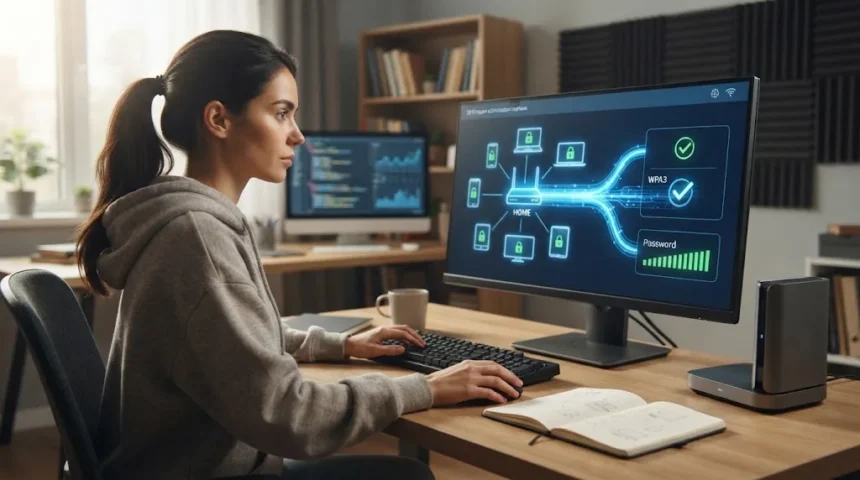
Your home Wi-Fi network connects more than just laptops and phones. Smart TVs, cameras, speakers, gaming consoles, thermostats, work computers, and other devices may all depend on the same router. If that network is poorly protected, unauthorized users could potentially access your internet connection, monitor traffic, attack connected devices, or create other privacy and security problems.
Fortunately, securing home Wi-Fi does not require advanced networking knowledge. Most of the important protections involve changing a few router settings, using strong passwords, installing updates, and controlling which devices are allowed to connect. A properly configured wireless network can significantly reduce the risk of unwanted access while keeping everyday internet use convenient.
The best approach is to treat your router as an important security device rather than something you configure once and forget. Regularly reviewing settings and connected devices can prevent small weaknesses from becoming serious problems. The following steps explain how to secure your home Wi-Fi network using practical methods that almost any internet user can follow.
Change the Default Router Admin Password
Most routers include an administrator account that allows you to change Wi-Fi settings, install updates, and manage connected devices. Some devices arrive with default login credentials that are widely known or easy to find online. Leaving those credentials unchanged can make it easier for someone who reaches the router interface to modify important security settings without your permission.
Create a long, unique administrator password that you do not use for your Wi-Fi network or any online account. A password manager can generate and store it securely so you do not need to rely on memorable but predictable combinations. Avoid names, addresses, birthdays, phone numbers, and common phrases that someone familiar with your household might guess.
The router administrator password and Wi-Fi password serve different purposes and should remain separate. Your Wi-Fi password controls who connects to the wireless network, while the administrator password protects the router configuration itself. Keeping both credentials unique limits the damage if one password is accidentally shared, exposed, or compromised.
Create a Strong and Unique Wi-Fi Password
Your wireless password is one of the main barriers preventing neighbors, visitors, or strangers from connecting to your network. Use a long passphrase or randomly generated password rather than simple combinations such as your family name followed by a few numbers. Longer, unpredictable credentials are much harder to guess or crack through automated attempts.
Avoid reusing a password from email, banking, social media, or other important accounts. Guests sometimes need access to household Wi-Fi, which means the password may eventually be shared with more people than your private account credentials. Keeping it separate prevents an exposed wireless password from giving someone access to unrelated online services.
Change the Wi-Fi password if you believe it has been widely shared or an unknown device appears on the network. After changing it, trusted devices will normally need to reconnect using the new credentials. Although reconnecting several devices can take a few minutes, it provides a simple way to remove people who should no longer have access.
Use WPA3 or WPA2 Encryption
Wi-Fi encryption protects information traveling between your router and connected wireless devices. Modern routers commonly support WPA3, which provides stronger protections than older wireless security standards. If all your important devices support WPA3, enabling it can provide a more secure foundation for your home network without changing how you normally browse or stream.
Some households still use older devices that cannot connect using WPA3 alone. In that situation, WPA2 remains a practical option when configured with strong encryption and a secure password. Avoid outdated standards such as WEP because they contain serious weaknesses and should no longer be considered appropriate protection for a modern home Wi-Fi network.
You can usually check the security mode through the router’s web interface or companion application. Look under wireless, Wi-Fi, or security settings for options describing WPA3, WPA2, or mixed compatibility modes. If you are unsure whether older devices support the newest standard, test them after changing the setting and upgrade outdated equipment when practical.
Update Your Router Firmware Regularly
Routers run software called firmware, and that software can contain security vulnerabilities just like computer or smartphone applications. Manufacturers release updates to fix bugs, improve performance, and close security weaknesses discovered after the router was sold. Using outdated firmware may leave your network exposed to vulnerabilities that attackers already know how to exploit.
Many newer routers can install updates automatically, which is usually the simplest option for home users. Check whether automatic firmware updates are available and enable them when you trust the manufacturer’s update process. If updates must be installed manually, review the router settings or manufacturer support information periodically rather than leaving the same firmware untouched for years.
Older routers eventually stop receiving security updates altogether. If your router is several years old and the manufacturer no longer supports it, replacement may be safer than continuing to rely on outdated hardware. Newer equipment can also provide improved encryption, better device management, stronger performance, and security features that were unavailable when older routers were designed.
Change the Default Wi-Fi Network Name
The Wi-Fi network name, also known as the SSID, is visible to nearby devices searching for wireless connections. Default names sometimes reveal the router manufacturer or model family, which may provide unnecessary information to someone attempting to identify potential weaknesses. Changing the SSID can remove this obvious clue and make your network easier to recognize personally.
Choose a network name that does not reveal your surname, apartment number, exact address, or other private information. A creative neutral name works perfectly well and avoids broadcasting personal details to everyone within wireless range. Remember that hiding the SSID entirely provides little meaningful security because determined attackers can still detect wireless networks through other technical methods.
Changing the network name does not replace strong encryption or passwords. Think of it as a privacy and organization improvement rather than a major defensive barrier. Your strongest protection still comes from modern wireless encryption, secure credentials, updated router software, and carefully managed connected devices.
Create a Separate Guest Wi-Fi Network
A guest network allows visitors to access the internet without connecting directly to the same network used by your personal computers and other trusted devices. Many modern routers include this feature and can create a separate wireless name and password. This arrangement limits unnecessary access to devices such as file-sharing computers, printers, security cameras, or network storage.
Use the guest network whenever friends, extended family, contractors, or other temporary visitors need internet access. You can share a simpler guest password without revealing the main household Wi-Fi credentials. Some routers also let you prevent guest devices from communicating with one another or accessing devices connected to your private home network.
Guest networks can also be useful for smart-home devices that do not need direct communication with sensitive computers. However, compatibility varies because some smart devices must communicate locally with phones, hubs, or controllers. Test important functions before separating equipment and use network isolation features only when they do not interfere with legitimate device operation.
Review Connected Devices and Remove Unknown Ones
Most router interfaces show a list of devices currently or recently connected to your network. Reviewing this list occasionally can help you identify unfamiliar phones, computers, televisions, smart devices, or other equipment. Device names are not always clear, but checking manufacturer information or temporarily disconnecting known devices can help determine what belongs to your household.
If you find a device you cannot identify, do not immediately assume someone has hacked the network. Many smart products appear under confusing technical names, and old devices may remain listed after they are no longer actively connected. Investigate the device first, then block it or change the Wi-Fi password if you remain confident that it is unauthorized.
Some routers allow you to receive notifications when new equipment joins the network. This feature can make monitoring easier because you do not need to remember to check manually. Combining connection alerts with a guest network and strong wireless password provides better visibility into who is using your home internet connection.
Disable Features You Do Not Need
Routers often include convenient features that can also increase security exposure when poorly configured. Remote administration, WPS, universal plug-and-play functions, file sharing, and other services may be enabled even when your household never uses them. Disabling unnecessary features reduces the number of settings or services that an attacker could potentially attempt to exploit.
WPS deserves particular attention because it was designed to make connecting devices easier. If you already connect devices using a normal Wi-Fi password, you may not need WPS enabled. Similarly, remote router management should generally remain disabled unless you have a specific reason to control the router from outside your home and understand how to secure that access.
Technical users working from home may connect development machines and cloud services through the same network. If your work involves online development platforms or tools such as AI coding assistants, minimizing unnecessary router services can reduce avoidable exposure. The goal is to enable only the features your household actually needs.
Secure Every Device Connected to Your Wi-Fi
Your router can be well protected while an outdated laptop, camera, or smart device still creates risk. Every connected device should receive security updates where available and use strong account credentials. Remove equipment you no longer use from the network rather than leaving forgotten devices connected indefinitely with old software or unchanged default passwords.
Smart-home products deserve special attention because inexpensive cameras, plugs, doorbells, and other connected devices may receive limited long-term support. Change any default passwords immediately and disable features you do not need. Before purchasing new smart devices, consider whether the manufacturer provides software updates and has a reasonable history of supporting its products.
Computers and phones should also use updated operating systems, secure screen locks, and reputable security tools where appropriate. Avoid downloading suspicious applications or ignoring browser security warnings simply because you trust your home Wi-Fi. Network protection cannot prevent every threat caused by phishing, malware, unsafe downloads, or compromised online accounts.
Position and Manage Your Router Carefully
Router placement affects both performance and the physical security of your network equipment. Keep the router somewhere within your home where household members can access it when necessary but strangers cannot easily touch or reset it. A person with physical access may be able to press reset buttons, connect network cables, or change settings depending on the device.
Positioning the router near the center of the home usually improves wireless coverage while reducing the need for maximum transmission power. Strong signals will often extend beyond your walls regardless, so placement should never be treated as a security measure by itself. Use proper encryption and passwords even if you believe your network signal barely reaches outside.
If your internet provider supplied the router, learn which settings you are allowed to manage yourself. Provider applications may offer simplified controls for passwords, guest networks, updates, and device monitoring. If the supplied equipment lacks important modern security features, ask whether a newer model is available or consider using compatible equipment that gives you greater control.
Build a Simple Home Wi-Fi Security Routine
Home network security becomes easier when you turn important checks into occasional habits. Every few months, review connected devices, router updates, guest access, and administrator settings. You do not need to constantly change strong passwords without reason, but you should update them whenever you suspect unauthorized access or discover that credentials have been exposed.
Keep a secure record of important router information, including the administrator login and any custom configuration details. A password manager is safer than storing credentials in an unprotected text file or handwritten note beside the router. Knowing how to access your settings quickly can also make troubleshooting easier if your network begins behaving strangely.
Finally, pay attention to unexpected changes such as new network names, altered DNS settings, unfamiliar devices, repeated disconnections, or administrator passwords that suddenly stop working. These issues can have innocent explanations, but they deserve investigation. Early detection combined with updated equipment and strong configuration gives your home network a much stronger overall security foundation.
Conclusion
Securing your home Wi-Fi network does not require complicated technical skills. Changing default credentials, using WPA3 or WPA2 encryption, creating a strong wireless password, and keeping router firmware updated can address many of the most important risks. These basic steps make unauthorized access much more difficult without affecting normal browsing, streaming, gaming, or remote work.
Additional measures such as guest networks, device monitoring, disabled unused features, and secure smart-home devices provide another layer of protection. Your router is only one part of the network, so every connected phone, computer, camera, and smart device should also receive appropriate updates and account security. One poorly protected device can weaken an otherwise carefully configured environment.
Treat Wi-Fi security as routine household maintenance rather than a one-time setup task. Review your network occasionally, replace unsupported equipment, and investigate unfamiliar devices or settings when they appear. A few thoughtful habits can help protect your personal information, connected devices, and internet connection while keeping your home network convenient to use.
FAQs
What is the best security setting for home Wi-Fi?
WPA3 is generally the preferred option when your router and devices support it. WPA2 remains useful for compatible older devices, while outdated standards such as WEP should be avoided.
How often should I change my Wi-Fi password?
You do not need to change a strong Wi-Fi password on a fixed schedule. Change it when you suspect unauthorized access, share it too widely, or discover an unfamiliar device using your network.
Should I hide my Wi-Fi network name?
Hiding your SSID provides very little real security because specialized tools can still detect the network. Strong encryption, secure passwords, updated firmware, and careful device management offer much more meaningful protection.
Is a guest Wi-Fi network safer?
Yes. A properly configured guest network can keep visitor devices separated from your main household network. It also allows you to share internet access without giving guests the primary Wi-Fi password.
How can I tell if someone is using my Wi-Fi?
Check the connected-device list in your router settings or companion app. Investigate unfamiliar devices carefully, because smart-home products may use unclear names, and change your password if unauthorized access is confirmed.