

What Is Remote Desktop?
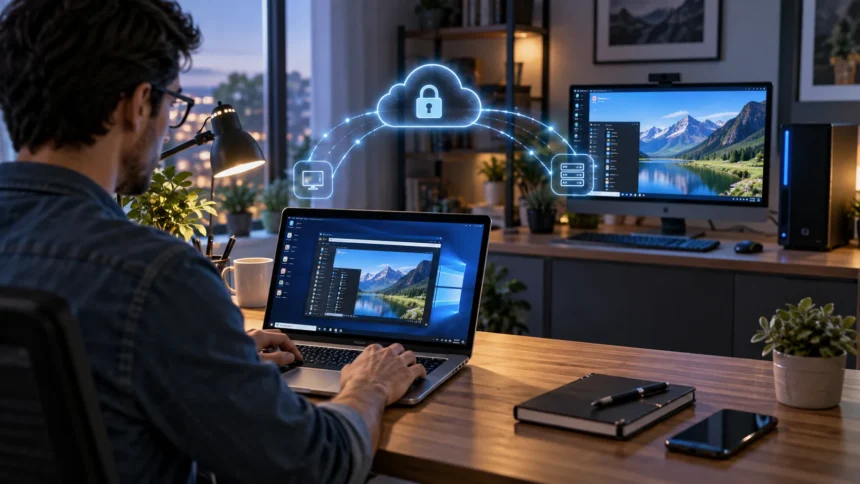
Remote desktop is a technology that lets you access and control another computer from a different device or location. Instead of physically sitting in front of the remote computer, you can see its desktop, open applications, manage files, and perform tasks through a network connection. The remote machine behaves much like it would if you were using it directly.
People commonly use remote desktop software to work from home, provide technical support, manage office computers, or reach files stored on another machine. The local device may be a laptop, desktop, tablet, or even a phone. As long as the required software, permissions, and network connection are available, remote access can often be established.
Remote desktop should not be confused with simply accessing files online. It gives you interactive control over another computer’s operating environment rather than only opening documents stored remotely. This makes it useful when you need applications, settings, or resources that exist specifically on the remote computer.
How Does Remote Desktop Work?
A remote desktop connection usually involves two devices: the host computer and the client device. The host is the computer being controlled, while the client is the device you use to access it. Remote desktop software connects the two systems and sends keyboard, mouse, screen, and sometimes audio information across the network.
When you move your mouse or type on the client device, those commands are transmitted to the host computer. The host processes the actions and sends updated screen information back to you. This happens continuously, creating the experience of working directly on a computer that may actually be located in another room or another country.
The connection can operate across a local network or over the internet, depending on the technology being used. Some solutions connect directly through configured network settings, while others use cloud-based relay services that simplify setup. Security controls determine who is allowed to connect and what level of access they receive.
What Is Remote Desktop Used For?
Remote work is one of the most common uses for remote desktop technology. Employees can connect to office computers from home and use applications, files, and systems that may not be installed on their personal devices. This can be particularly useful when specialized business software is available only on workplace machines.
IT teams also use remote desktop tools to troubleshoot computers without physically visiting the user. A technician can view the screen, change settings, install software, investigate errors, or guide the user through a problem. Remote support can reduce travel time and make technical assistance much faster for organizations with distributed teams.
Another common use is managing servers and computers located in data centers or other remote locations. Administrators can access these systems to perform updates, review logs, restart services, or make configuration changes. Remote desktop access is therefore useful for both everyday users and technical professionals responsible for maintaining infrastructure.
Remote Desktop vs Remote Access
Remote desktop and remote access are closely related terms, but they do not always mean exactly the same thing. Remote desktop generally refers to seeing and controlling the graphical desktop of another computer. You can interact with applications and files much as though you were sitting directly in front of that machine.
Remote access is a broader concept that includes many ways of reaching resources from another location. It may include remote desktop sessions, VPN connections, file sharing, command-line access, cloud applications, or web-based management panels. Remote desktop is therefore one specific form of remote access rather than the entire category.
The right technology depends on what you need to accomplish. If you only need a few shared files, full desktop control may be unnecessary. If you need to use software installed on an office computer or troubleshoot its settings, remote desktop provides a more complete way to interact with the system.
Remote Desktop vs VPN
A VPN and remote desktop solve different problems, although organizations often use them together. A VPN creates an encrypted connection between your device and another network, such as a company network. Once connected, your device can access approved internal resources as though it were connected more directly to that network.
Remote desktop gives you control over another computer. Instead of simply joining the remote network, you open and interact with a specific machine. The applications continue running on that remote computer, while your local device mainly sends input and displays the resulting screen.
A company may require employees to connect through a VPN before starting a remote desktop session. This creates an additional security layer by limiting access to approved users inside the protected network connection. Whether both are necessary depends on the organization’s network architecture, security policies, and remote access software.
What Do You Need for Remote Desktop?
The host computer usually needs remote desktop functionality enabled or compatible remote access software installed. It must also remain powered on and connected to the network when you want to reach it. If the computer is completely shut down, most remote desktop connections cannot begin unless another remote power-management solution is available.
You also need the correct login information and permission to access the host computer. Depending on the software, this may involve a username and password, device code, account login, security token, or multi-factor authentication. Strong authentication is important because remote desktop access can provide significant control over the remote system.
A reliable internet or network connection is also important. Slow bandwidth, high latency, or unstable Wi-Fi can make mouse movement, typing, video, and screen updates feel delayed. Remote desktop does not always require extremely high speeds, but a consistent connection creates a noticeably smoother experience.
How Secure Is Remote Desktop?
Remote desktop can be secure when it is configured carefully, but poorly protected remote access can create serious risks. Attackers may target exposed remote desktop services using stolen passwords or repeated login attempts. Strong credentials, restricted access, encryption, and multi-factor authentication can significantly improve protection.
Avoid exposing remote desktop services directly to the public internet unless you understand the security implications and have appropriate protections in place. Businesses commonly use VPNs, secure gateways, firewall rules, or zero-trust access solutions to limit who can reach remote systems. Software should also remain updated so known security weaknesses can be fixed.
User permissions should be limited as well. Not every remote user needs administrator access to the computer. Giving people only the permissions required for their role reduces potential damage if an account is compromised and makes remote desktop part of a broader, layered cybersecurity strategy.
Does Remote Desktop Transfer Files?
Many remote desktop tools support some form of file transfer between the local and remote computer. You may be able to drag files between systems, copy and paste them, map local drives into the session, or use a dedicated transfer feature. The exact method depends on the software and security settings.
Organizations may intentionally disable file transfer to prevent sensitive information from being copied onto personal devices. Remote sessions can provide access to business files while keeping the actual data on company-managed hardware. This can be useful when security policies require stricter control over where confidential documents are stored.
If your main goal is shared storage rather than controlling another computer, a dedicated storage solution may be more appropriate. Comparing NAS vs cloud storage can help explain alternatives for centralized file access. Remote desktop is most useful when you need the computer itself, not merely its files.
What Affects Remote Desktop Performance?
Network latency has a major influence on how responsive a remote desktop session feels. Even when download speeds are high, a long delay between your device and the host can make typing, mouse movement, and screen changes feel slow. Connections across large geographic distances may therefore feel less responsive than local or nearby sessions.
Screen resolution and visual activity also affect performance. A mostly static business application requires less data than rapidly changing video, animation, or detailed graphics. Some remote desktop tools automatically reduce image quality or visual effects when connection quality drops so the session remains usable.
The host computer’s performance matters as well. If its processor, memory, or storage is already under heavy load, remote users may experience delays even with a strong network connection. A smooth session therefore depends on both network quality and the resources available on the remote machine.
Remote Desktop for Working From Home
Remote desktop can help employees work from home without moving all business applications and files onto personal devices. Workers connect to their office computers and continue using familiar software in the same environment. This can simplify access to specialized applications that may be expensive, difficult to install, or restricted to company hardware.
It can also help businesses keep data centralized. Instead of downloading large amounts of information to home computers, employees can work with files while they remain stored on office systems. Organizations can combine remote desktop with authentication, monitoring, and network controls to manage how remote sessions are used.
However, the experience depends heavily on reliable connectivity. Employees with unstable home internet may experience interruptions, lag, or reduced screen quality. Businesses should also provide clear guidance about passwords, approved devices, software updates, and secure connection methods when remote desktop becomes part of regular work.
Common Remote Desktop Problems
One common problem is being unable to reach the host computer. The machine may be turned off, disconnected from the network, blocked by a firewall, or configured incorrectly. Checking whether remote access is enabled and whether the computer is reachable should usually be among the first troubleshooting steps.
Slow or unstable sessions are another frequent issue. Congested Wi-Fi, poor internet service, high latency, or heavy activity on the host computer can all reduce performance. Lowering screen resolution, closing unnecessary applications, switching to a wired connection, or connecting through a closer network path may help.
Authentication errors can also prevent access. Password changes, expired accounts, incorrect permissions, or multi-factor authentication problems may block legitimate users. Avoid repeatedly changing settings without understanding the cause, especially on business systems where security policies may intentionally restrict how remote desktop connections are established.
Best Practices for Using Remote Desktop Safely
Use strong, unique passwords for any account that can initiate a remote desktop connection. Multi-factor authentication adds another layer by requiring a second form of verification. This helps protect the account even if someone discovers or steals the password through phishing, credential leaks, or other attacks.
Keep remote desktop software, operating systems, and security tools updated. Updates can fix vulnerabilities and improve both reliability and compatibility. Organizations should also monitor remote login activity so unusual connection times, repeated failed attempts, or access from unexpected locations can be investigated quickly.
Disconnect or lock remote sessions when they are no longer needed. Avoid leaving privileged accounts connected unnecessarily, especially on shared devices. Combining secure authentication, limited permissions, encrypted connections, network restrictions, and regular updates provides much stronger protection than relying on a single security setting.
Conclusion
Remote desktop technology allows you to see and control another computer from a different device or location. Your keyboard and mouse commands are sent to the remote machine, while its screen information is transmitted back to you. This makes it possible to use remote software and resources without being physically present.
Businesses use remote desktop for home working, IT support, server management, and access to specialized systems. It can also reduce the need to copy sensitive files onto multiple personal devices. However, connection quality, host computer performance, and security configuration all influence how useful the experience will be.
Remote desktop should always be configured with security in mind because it can provide powerful access to another computer. Strong authentication, updated software, restricted permissions, and secure network paths can reduce risk. When properly managed, remote desktop is a practical way to work with computers and applications from almost anywhere.
FAQs
What is remote desktop in simple terms?
Remote desktop lets you view and control another computer from a different device. You can use its applications, files, and settings almost as if you were sitting directly in front of it.
Does remote desktop require internet access?
Internet access is needed when the computers are in different locations, but remote desktop can also work over a local network. The exact requirements depend on the software and network configuration.
Can remote desktop access files?
Yes. You can normally open and manage files stored on the remote computer, and many tools also support file transfer. Administrators may restrict transfers for security reasons.
Is remote desktop safe to use?
Remote desktop can be safe when protected with strong passwords, multi-factor authentication, encryption, updated software, and restricted network access. Poorly configured or publicly exposed services can create security risks.
Can I use remote desktop from a phone?
Yes. Many remote desktop platforms provide mobile applications for phones and tablets. Smaller screens may make detailed work harder, but mobile access can be useful for quick checks and simple tasks.