

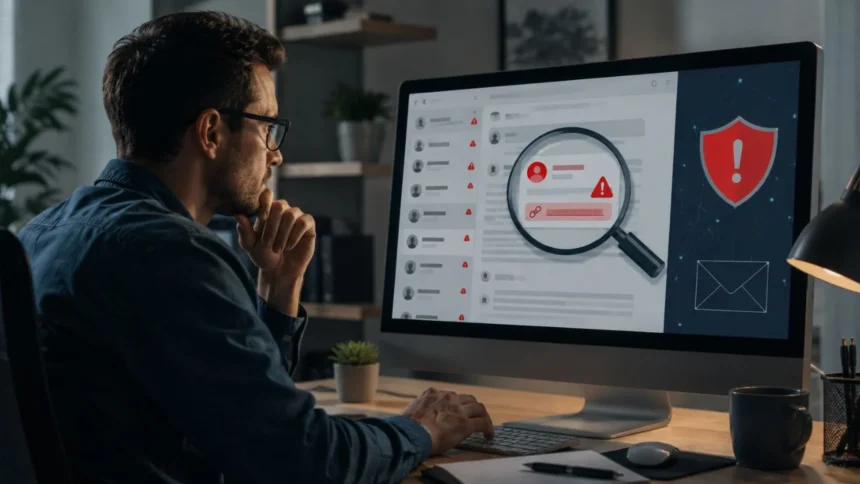
How to Spot Phishing Emails: Warning Signs You Should Never Ignore
Phishing emails are designed to look trustworthy while quietly pushing you towards a harmful action. The message may appear to come from your bank, employer, delivery company, streaming service, or another organisation you recognise. Its real purpose, however, is usually to steal login details, collect personal information, infect a device, or persuade you to send money.
Learning how to spot phishing emails is becoming more important because scam messages are no longer always filled with obvious spelling mistakes. Criminals can copy real logos, imitate professional writing styles, create convincing login pages, and personalise messages using information found online. Some phishing attempts may therefore look almost identical to genuine emails at first glance.
The safest approach is not to rely on one warning sign. Instead, examine the sender, request, wording, links, attachments, and surrounding circumstances together. An unusual payment request might be suspicious even when the email address looks familiar, while a polished security alert may still be fraudulent if it sends you to an unexpected website.
This guide explains the most common phishing email signs, modern tactics to watch for, and safe ways to verify suspicious messages. It also covers what to do after clicking a malicious link and how to strengthen your email security before another scam reaches your inbox.
What Is a Phishing Email?
A phishing email is a fraudulent message that pretends to come from a legitimate person, business, or organisation. Attackers use it to manipulate recipients into revealing passwords, banking details, verification codes, or other sensitive information. Some messages also encourage people to download malware, approve a fake login request, or make an unauthorised payment.
Most phishing scams use social engineering rather than complicated technical attacks. The scammer creates a believable situation that encourages you to react emotionally before checking the details. The email might claim that your account has been locked, a payment has failed, a parcel cannot be delivered, or an important document is waiting for your signature.
The message normally includes a specific action, such as clicking a link, opening an attachment, scanning a QR code, calling a phone number, or replying with personal information. That action gives the attacker an opportunity to steal information or move the conversation to a less secure channel where the deception can continue.
Phishing can target thousands of people at once, but it can also be personalised for one individual or company. Highly targeted messages are often called spear-phishing emails, while scams involving executives, suppliers, invoices, or company payments may be described as business email compromise.
Check the Full Sender Email Address
The sender’s display name is one of the first details you see, but it is not reliable on its own. A scammer can make the name appear as “Microsoft Support,” “Your Bank,” or even the name of your manager. The actual email address hidden beside that display name may belong to an unrelated account.
Expand the sender information and inspect the complete address carefully. Look for extra letters, missing characters, unexpected numbers, unusual symbols, or a domain that is slightly different from the real company’s website. An address ending in “paypa1.com,” for example, could be designed to resemble a familiar brand at a quick glance.
Also watch for free email accounts being used for official company requests. A message claiming to come from a large organisation may be suspicious if it arrives from an ordinary Gmail, Outlook, or Yahoo address. However, a business domain is not automatic proof of safety because attackers may compromise legitimate accounts or create convincing domains.
Do not assume an email is genuine simply because the sender has contacted you before. Criminals sometimes gain access to real mailboxes and continue existing conversations. Always consider whether the new request makes sense, especially when it involves passwords, confidential documents, gift cards, bank details, or urgent payments.
Watch for Urgent, Threatening, or Emotional Language
Phishing emails frequently create urgency because rushed people are less likely to examine small details. The message may claim that your account will be closed within hours, your payment method has been declined, or suspicious activity requires immediate verification. A countdown or strict deadline may be included to increase pressure.
Threats are another common warning sign. You might be told that you will lose access to your email, face a financial penalty, miss a delivery, or have legal action taken against you. Even when the issue sounds serious, a legitimate organisation should give you a safe and verifiable way to review it.
Some attackers use excitement instead of fear. They may announce that you have won a prize, received an unexpected refund, qualified for a reward, or been selected for a special offer. The emotional reaction is different, but the goal is the same: encouraging you to click or provide information before thinking carefully.
Pause whenever a message demands immediate action. Ask whether you expected the email, whether the request follows the organisation’s normal process, and whether the consequences seem reasonable. Taking one extra minute to verify the situation can prevent account theft, malware infection, and financial loss.
Inspect Links Before You Click Them
A phishing link may look legitimate in the email while leading to an entirely different website. On a computer, place your cursor over the link without clicking it and review the destination shown by your browser or email application. On mobile devices, pressing and holding the link may display a preview.
Read the domain from right to left and identify the actual registered website. Attackers may add trusted brand names to subdomains, folders, or long strings of text to distract you. A link containing your bank’s name is not necessarily connected to your bank if the main domain belongs to someone else.
Be cautious with shortened links because they hide the final destination. Also watch for misspelled domains, unexpected country extensions, additional hyphens, substituted numbers, and addresses beginning with an unfamiliar sequence of characters. HTTPS and a padlock icon only indicate an encrypted connection; they do not prove that the website is honest.
Rather than clicking an email link, open the organisation’s official application or type its known website address into your browser. You can then check your account directly for alerts, invoices, messages, or security notices. This removes the suspicious link from the verification process and greatly reduces the chance of visiting a fake login page.
Treat Unexpected Attachments Carefully
Malicious email attachments can install malware, steal saved information, or give criminals access to a device. Common examples include fake invoices, payment receipts, delivery documents, job applications, tax forms, and shared files. The message may describe the attachment as important so that you open it without verifying the sender.
Do not assume a file is safe because it looks like a PDF, spreadsheet, image, or Word document. File names and icons can be misleading, and some attachments may contain harmful scripts or direct you to a fraudulent website. Password-protected archives can be especially suspicious because encryption may prevent security tools from inspecting their contents.
Be careful when a document asks you to enable macros, activate editing, install software, or sign in to view its contents. These extra steps may allow harmful code to run or lead you to a credential-stealing page. A legitimate document should not normally require you to weaken your security settings before reading it.
When an attachment appears to come from a colleague, supplier, or customer, confirm it through a separate channel before opening it. Call the sender using a known phone number or start a new message using a trusted contact address. Do not reply directly to the suspicious email because the attacker may control that account or conversation.
Be Suspicious of QR Codes in Emails
QR-code phishing, sometimes called quishing, places a scannable code inside an email or attachment. Scanning it may open a fake login page, initiate a fraudulent payment, or download malicious software. Because the destination is hidden inside an image, recipients cannot inspect it as easily as an ordinary text link.
These emails often claim that you must scan the code to reset a password, review a secure document, complete multifactor authentication, or confirm a payment. Some QR codes are placed inside PDFs, spreadsheets, or realistic company notices. The message may also tell you that scanning is the only available way to complete the request.
Moving the process to a phone can make the scam harder to recognise. Mobile screens show less information, and the device may not have the same security controls as a managed work computer. A fake mobile login page can also closely resemble the legitimate service it is copying.
Treat every unexpected QR code like an unknown link. Confirm who sent it, why it is necessary, and where it will take you before scanning. When your phone shows a destination preview, inspect the domain carefully and cancel the action if anything looks unfamiliar.
Do Not Rely Only on Spelling and Grammar
Poor spelling, unusual punctuation, and awkward grammar remain useful phishing email signs. A message may use strange sentence structures, inconsistent capitalisation, or words that do not match the supposed sender’s usual communication style. Generic greetings such as “Dear Customer” can also indicate that the email was sent to many recipients.
However, correct grammar does not prove that a message is genuine. Modern criminals can use templates, translation software, copied corporate emails, and artificial intelligence to create polished messages. A well-written email with accurate branding can still contain a dangerous link, fraudulent phone number, or false payment request.
Look for subtle inconsistencies rather than obvious mistakes alone. The email may use a slightly unusual tone, refer to a service you do not use, include the wrong currency, or describe a process that differs from the organisation’s normal procedure. Even a small mismatch can justify further verification.
The most dependable method is to evaluate the complete context. Examine the sender address, timing, request, destination, attachment, and emotional pressure together. The fewer assumptions you make based on appearance, the harder it becomes for a professional-looking phishing scam to mislead you.
Notice Requests for Sensitive Information
Legitimate organisations rarely ask you to send passwords, full payment-card details, verification codes, or government identification numbers through ordinary email. A direct request for this information should therefore be treated as a major warning sign, even when the message includes professional branding and personal details.
Some phishing emails send you to a fake form instead of asking you to reply. The page may copy a Microsoft 365, Google, banking, social media, or company login screen. Information entered into that page can be collected immediately and used to access the genuine account.
Be especially cautious with requests for one-time passcodes or multifactor authentication approvals. A scammer who already knows your password may contact you while attempting to log in. Sharing the code or approving an unexpected notification could give the attacker the final piece needed to access your account.
Never send confidential information until you have independently confirmed both the organisation and the reason for the request. Open the official application, call a trusted number, or contact the organisation through its verified website. Do not use the contact details supplied inside the questionable email.
Recognise Fake Payment and Invoice Requests
Payment-related phishing is particularly dangerous because a single successful email can cause immediate financial loss. The message may request a bank transfer, gift-card purchase, cryptocurrency payment, invoice update, or change to a supplier’s account details. It may appear to come from an executive, colleague, landlord, or regular vendor.
Business email compromise often relies on realistic workplace knowledge. Attackers may research employee roles, company relationships, travel schedules, or public announcements before sending the request. Some criminals compromise a genuine mailbox and wait until a real invoice or transaction is being discussed before interfering.
Changes to payment instructions should always be confirmed outside email. Call the supplier using a previously verified number and ask them to confirm the account details verbally. Do not use a phone number included in the new invoice or message because it could belong to the scammer.
Companies should establish approval procedures for transfers, payroll changes, and supplier updates. Multiple checks may feel inconvenient, but they prevent one convincing email from controlling a financial decision. Employees should also be encouraged to question unusual executive requests without fear of delaying an urgent task.
Look for Unusual Replies and Conversation Hijacking
Not every phishing attempt begins as a new email. An attacker may compromise someone’s account and reply within an existing conversation, making the message appear more credible. The previous subject line, participants, and email history can create a false sense of security.
Pay attention when the topic suddenly changes or the sender introduces an unexpected attachment, login page, or payment request. A colleague who normally communicates clearly may begin using unusual language or ask you to keep the request confidential. These changes can indicate that someone else is controlling the account.
Conversation hijacking can be especially effective because the attacker already knows the context. They may refer to a real project, invoice, meeting, or customer relationship. However, accurate details do not make the new request safe, particularly when money, credentials, or sensitive files are involved.
Verify unusual requests through another trusted method. Speak to the person directly, call their known number, or contact them using an established using an established workplace platform. Avoid relying on the same email conversation for confirmation because a compromised account can provide believable but41turn473211search0
Common Types of Phishing Emails
Account-security alerts are among the most common phishing examples. These messages claim that someone accessed your account, your password has expired, or suspicious activity requires verification. The attacker hopes that concern about account safety will push you towards a fake sign-in page.
Delivery and shopping scams may describe an unpaid shipping fee, failed address confirmation, missed parcel, order cancellation, or unexpected refund. These messages are effective because many people shop online and may assume the email relates to a recent purchase, even when the order details are vague.
Workplace phishing may imitate human resources, payroll, technical support, executives, or document-sharing services. Typical requests include reviewing a new policy, updating benefits, signing a file, resetting an email password, or purchasing gift cards. The message may use real employee names gathered from public websites.
Other phishing campaigns exploit taxes, government benefits, charities, job opportunities, subscriptions, investments, or major news events. The subject changes according to what is likely to attract attention, but the basic method remains consistent: establish trust, trigger emotion, and direct the recipient towar3turn473211search32
How to Verify a Suspicious Email Safely
Begin by asking whether the message was expected. Consider whether you use the service, know the sender, requested the document, or recently performed the activity mentioned. An unexpected email is not automatically fraudulent, but it deserves more careful inspection before you act.
Next, check the account through an independent route. Open the official app or manually enter the organisation’s website address instead of following the email link. Genuine account problems, invoices, delivery updates, and security alerts should normally appear inside your official account.
Contact the sender using information you already trust. A saved phone number, official company directory, verified website, or previous legitimate conversation is safer than the details provided in the suspicious message. Ask whether the person sent the email and whether the requested action is correct.
When the email concerns workplace systems, report it to your IT or security team using the organisation’s approved reporting process. Do not forward it casually to colleagues, as this may spread dangerous links or attachments. Reporting helps security teams investigate the message and prote45turn994848search2
What to Do If You Clicked a Phishing Link
If you clicked a suspicious link but did not enter information, close the page immediately. Do not download files, approve notifications, or accept requests to install browser extensions. Run your device’s security scan and make sure the operating system, browser, and security software are updated.
If you entered a password, change it immediately through the genuine website or official application. Use a clean device when possible and replace the password anywhere else you reused it. A unique password prevents one stolen login from exposing several accounts.
Review recent account activity and sign out of unfamiliar devices or active sessions. Check whether recovery details, forwarding rules, connected applications, or multifactor authentication settings have changed. Attackers sometimes create ways to maintain access even after the original password is replaced.
Contact your bank quickly if you entered financial details or sent money. Inform your employer when a work account or device may be affected, and report the phishing message through the relevant platform or authority. Fast action may limit identity theft, financial damage, and further1turn473211search15
How to Protect Yourself From Phishing Emails
Use a unique, strong password for every important account. A password manager can generate and store complex passwords without requiring you to remember each one. Unique credentials prevent a password stolen through one phishing page from unlocking your email, banking, shopping, and social accounts.
Enable multifactor authentication wherever it is available. Authentication apps and physical security keys generally provide stronger protection than passwords alone. However, never approve a login notification or share a verification code unless you personally initiated the sign-in and recognise the device.
Passkeys can provide additional phishing resistance because they are connected to the genuine website or application rather than manually typed into a login form. A deceptive website cannot normally collect and reuse a passkey in the same way that it can steal a traditional password.
Keep devices updated, enable spam filtering, and regularly review account activity. For workplaces, combine technical controls with practical employee training and simple reporting procedures. Security software can block many threats, but people still need a clear process for handling suspicious messages t5turn473211search28
How Businesses Can Reduce Email Phishing Risks
Businesses should create a culture in which employees are comfortable reporting suspicious emails and questioning unusual requests. Staff should never feel pressured to approve a payment or disclose information simply because an email appears to come from a senior executive.
Regular phishing awareness training can help employees recognise current tactics instead of memorising outdated examples. Training should cover display-name spoofing, lookalike domains, fake shared documents, QR codes, payment fraud, compromised accounts, and polished messages that contain no obvious language mistakes.
Technical protection is also necessary. Organisations can use email filtering, attachment controls, domain authentication, multifactor authentication, restricted administrator access, and monitoring for suspicious login activity. No single control stops every attack, so several layers should work together.
Clear incident procedures are equally important. Employees should know where to report a suspicious message, while security teams should be prepared to remove similar emails, reset affected credentials, investigate account changes, and warn other users. Early reporting can stop one mistake from becoming an organ4turn473211search50
Final Thoughts on Spotting Phishing Emails
Knowing how to spot phishing emails begins with slowing down. Scammers benefit when recipients feel frightened, excited, curious, or pressured. A short pause gives you time to inspect the sender, consider whether the request makes sense, and choose a safer verification method.
Remember that appearance alone cannot prove legitimacy. A phishing email may include the correct logo, professional language, your real name, and information about your workplace. The more convincing the message looks, the more important it becomes to verify its request independently.
Avoid clicking unexpected links, opening unfamiliar attachments, scanning unexplained QR codes, or sharing login information through email. Visit accounts directly, contact senders through trusted channels, and report suspicious messages instead of deleting them without informing the appropriate team.
Phishing techniques will continue to change, but the core defence remains dependable: pause, inspect, verify, and report. These habits can protect your passwords, personal information, money, devices, and workplace accounts even when a scam email looks professi6turn473211search28
Frequently Asked Questions
What is the most obvious sign of a phishing email?
An unexpected request to click a link, provide sensitive information, open an attachment, or send money is a major warning sign. Urgency and a suspicious sender address make the message even more concerning.
Can a phishing email come from someone I know?
Yes. Attackers can spoof a familiar address or compromise a real email account. Verify unusual requests through a phone call or another trusted communication method before taking action.
Is it safe to open a phishing email without clicking anything?
Simply viewing an email is generally less risky than clicking a link or opening an attachment. However, avoid loading unknown content, replying, downloading files, or interacting with anything inside the message.
What should I do with a suspected phishing email?
Use your email provider’s “Report phishing” option or send it to your company’s security team through the approved process. After reporting it, remove the message from your inbox.
Can multifactor authentication stop phishing attacks?
Multifactor authentication can reduce the damage caused by a stolen password, but it is not perfect. Never share verification codes or approve unexpected login notifications, and consider phishing-resistant passkeys or security keys.